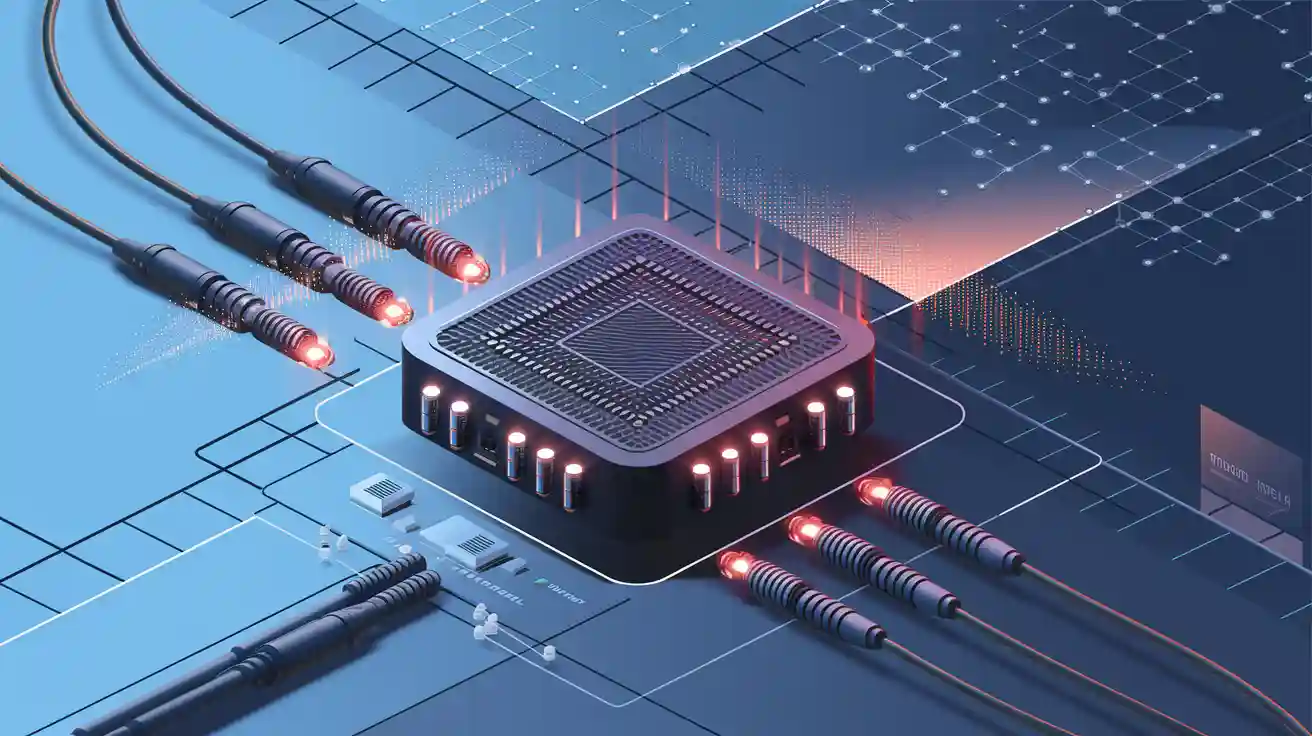

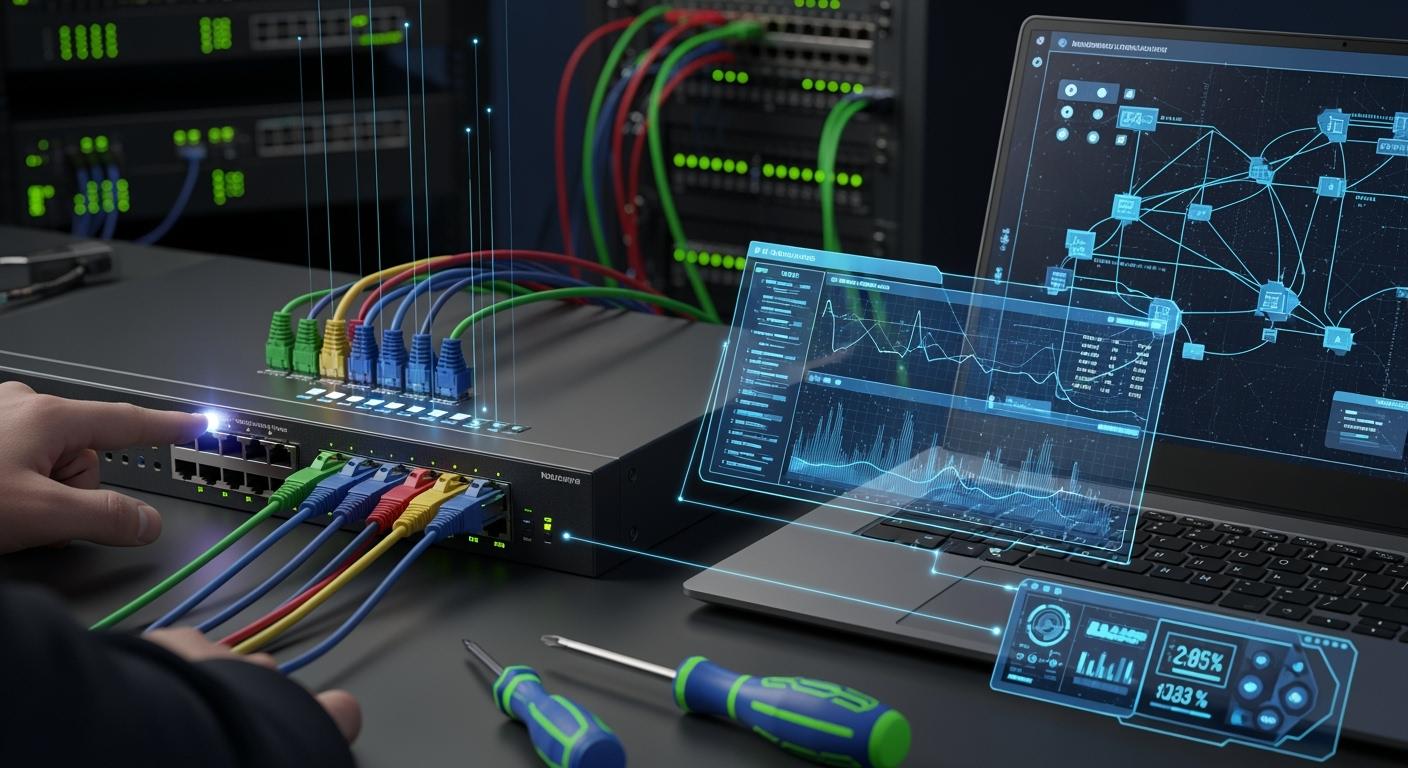
Network switches are the silent, unsung heroes of our connected world, diligently directing data traffic in offices, data centers, and homes. When they work, we barely notice. When they fail, productivity grinds to a halt. Effective network switch troubleshooting is an essential skill for any IT professional or advanced user. This comprehensive guide will walk you through a logical, layered approach to diagnosing and fixing common switch problems, helping you restore connectivity and performance efficiently.
📝 Key Takeaways
Begin by looking at the power and LED lights on your network switch. Make sure all cables are plugged in tight. Change any cables that look broken.
Turn your switch off and then on to fix errors. Try using different cables and ports one at a time. This helps you find what is causing the problem.
Use cable testers and working devices to check if things connect. This shows if the problem is with the switch, cables, or devices.
Take care of your switch by cleaning vents and looking at cables often. Plan to check everything once a month to find problems early.
Write down every change you make to your network switch. Keeping notes helps you fix things faster and stops problems from happening again.
📝 Understanding the Basics: What Could Go Wrong?
Before diving into diagnostics, it's crucial to understand the common culprits behind switch issues. Problems typically manifest in one of these areas:
Physical Layer: Cables, connectors, power, and hardware.
Port & Interface Issues: Configuration errors, speed/duplex mismatches, or faulty ports.
Switch Configuration: VLAN settings, spanning-tree problems, or security features blocking traffic.
Network Performance: Broadcast storms, high utilization, or environmental factors.
A methodical approach, starting from the physical layer and moving up, is key to effective network troubleshooting.
📝 The Systematic Troubleshooting Methodology
Step 1: The Physical Inspection (Layer 1)
Never underestimate the power of a physical check. Over 50% of network issues originate here.
Power & Lights: Is the switch powered on? Check for lit Power and System (SYS) LEDs. Are port LEDs active? A steady green often indicates link and activity, while amber may signal speed or errors.
Cables: Reseat cables at both ends. Visually inspect for damage. Use a known-good cable to test. For critical connections, a cable tester is invaluable.
Environment: Ensure adequate ventilation. Overheating can cause intermittent failures or complete shutdowns.
Step 2: Isolating the Problem Scope
Is the issue affecting a single device, a group of devices, or the entire network?
Single Device/Port: Point to a bad cable, port configuration, or NIC fault.
Group of Devices (e.g., one VLAN): Suggests a configuration error like an incorrect VLAN assignment or ACL.
Entire Network: Could indicate a core switch failure, uplink issue, or a network loop causing a broadcast storm.
Step 3: Checking Port Status and Configuration
Log into the switch's management interface (CLI or Web GUI).
Verify Link State: Check if the port is up/up (connected and operational).
Check Speed & Duplex: Mismatches between a switch port (e.g., 1Gbps/Full) and a connected device (e.g., 100Mbps/Half) cause severe performance issues and packet loss. Configure both ends to auto-negotiate or set them to identical, fixed values.
Review Error Counters: Look for high counts of CRC, alignment, or giant/runts errors, which often point to cabling or duplex problems.
Common Port Statuses and Their Meanings:
Status (CLI) | Typical Meaning | Action |
|---|---|---|
down/down | No physical layer signal. | Check cable, NIC, remote device. |
up/down | Physical link present, protocol down. | Check speed/duplex, VLAN, STP. |
up/up | Port is operational. | Focus on higher-layer config. |
err-disable | Port shut down due to error (e.g., loop). | Identify cause, then shut down/no shut down. |
Step 4: Analyzing Configuration and Protocols
VLANs: Ensure the port is assigned to the correct VLAN. A common mistake is connecting a device to an access port in the wrong VLAN.
Spanning Tree Protocol (STP): While it prevents loops, it can also cause ports to be stuck in blocking state. Use commands like show spanning-tree to verify.
Security Features: Check for MAC address filtering, 802.1X port authentication, or IP source guard that might be blocking legitimate traffic.
Step 5: Performance Diagnostics
For intermittent slowdowns:
Check Utilization: Monitor port bandwidth usage over time.
Identify Broadcasts: Use show mac address-table or traffic analyzers to see if a single port is generating excessive broadcasts.
Update Firmware: Outdated switch firmware can contain bugs affecting stability and performance.
📝 The Critical Role of RJ45 Connectors in Stable Networks
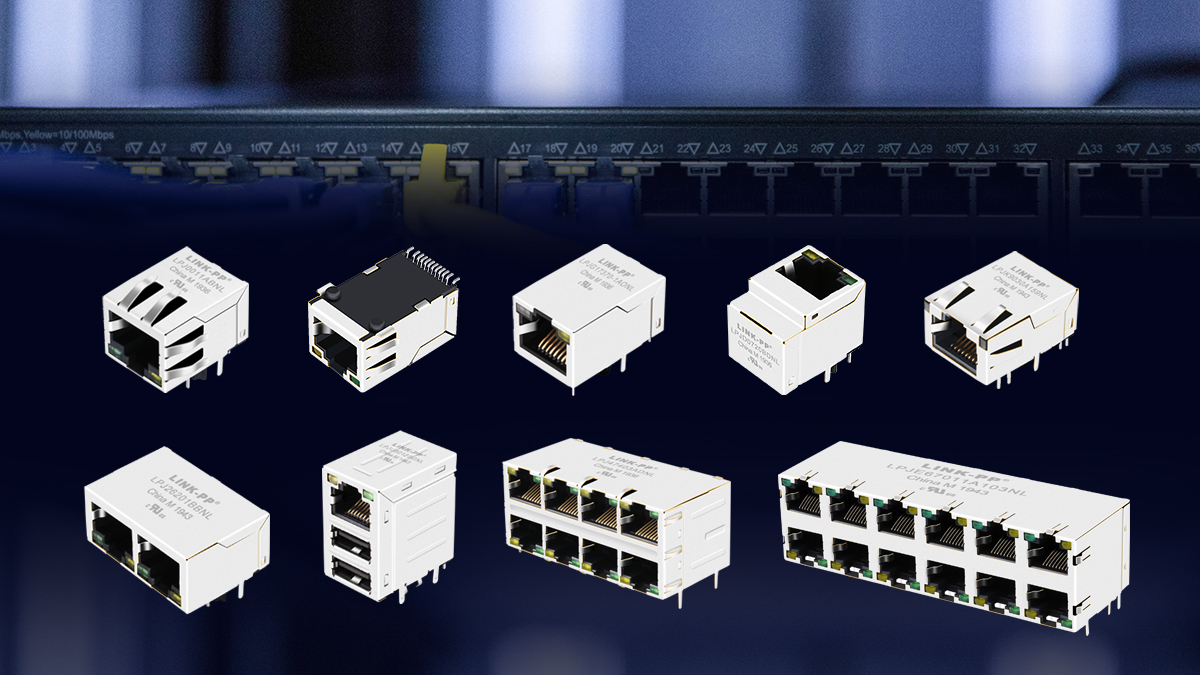
Often overlooked, the humble RJ45 connector is a foundational element in network reliability. A poorly crimped or damaged connector can lead to intermittent connectivity, negotiation failures, and performance degradation that mimics more complex switch problems. Symptoms like persistent speed/duplex mismatches or rising CRC errors on a specific port frequently trace back to connector issues.
When troubleshooting persistent physical layer problems, consider the quality of your connectors. For installations requiring superior signal integrity and durability, especially in high-vibration environments or for PoE (Power over Ethernet) applications, using professional-grade components is recommended. For instance, the LINK-PP RJ45 Magjack (Model: LPJG0926HENL), with its precision-engineered gold-plated contacts and robust strain relief design, ensures a reliable, low-resistance termination. This can eliminate one major variable in your physical network troubleshooting process, providing a stable foundation for your cabling infrastructure.
📝 Essential Troubleshooting Commands & Tools
Having the right tools is half the battle.
Built-in Switch Commands (Cisco-style example):
show interfaces status: Quick port overview.
show interfaces [interface-id]: Detailed port stats & errors.
show running-config interfaces [interface-id]: View port configuration.
show mac address-table dynamic address [mac-addr]: Find which port a device is on.
show logging: View system messages and error logs.
External Tools:
Cable Tester: Verifies wire maps and detects opens/shorts.
Ping & Traceroute: Basic reachability testing.
Network Analyzer (e.g., Wireshark): For deep packet inspection and identifying broadcast storms or faulty devices.
📝 Proactive Measures to Minimize Switch Problems
Prevention is better than cure. Implement these network switch best practices:
Documentation: Maintain updated network diagrams and switch configs.
Standardized Configurations: Use templates for port security, VLANs, and descriptions.
Regular Updates: Schedule maintenance windows for firmware updates.
Environmental Monitoring: Ensure proper cooling and clean power.
Strategic Spares: Keep spare LINK-PP-compatible cables and a backup switch for critical segments.
By following this structured network switch troubleshooting checklist, you can systematically eliminate variables, identify the root cause, and implement a solution. Remember, patience and a logical process are your best tools. Whether you're dealing with a simple cable fault or a complex spanning-tree loop, a layered approach will consistently get you—and your network—back on track.
Ready to optimize your network foundation? Start by auditing your physical connections and ensuring your components, from the switch itself down to the RJ45 connectors, are of reliable quality. For demanding applications, choosing proven solutions like the LINK-PP LPJG0926HENL can be a simple step toward achieving greater network stability and reducing future troubleshooting time.
📝 FAQ
What should you do if your switch does not power on?
Check the power cable and outlet first. Try a different outlet. If the switch still does not turn on, use another power adapter if possible. If nothing works, the switch may need repair or replacement.
How can you tell if a network cable is faulty?
Use a cable tester to check for breaks or faults. You can also swap the cable with one you know works. If the problem goes away, the original cable was likely bad.
Why do some devices lose connection while others work fine?
Some ports or VLAN settings may not match. Check if the affected devices use the same port or VLAN. Try moving a device to another port. Review your switch’s configuration for errors.
How often should you update your switch firmware?
You should check for firmware updates every few months. Update when the manufacturer releases new versions. Always back up your settings before updating to avoid losing your configuration.